
Key Takeaways
- CapCut, InShot, VN Video Editor and Instagram’s In-App Editor are among the top free Instagram Reel editors that work without watermark.
- Any decent Reels editing app should have 7 features – intuitive interface, 9:16 format support, creative features, audio sync, high export resolutions, platform compatibility, and costs.
- For mobile users, capabilities such as CapCut and InShot are worthwhile, and for professional editors, the desktop versions of DaVinci Resolve and Final Cut Pro provide more comprehensive features.
- Captioning software such as OpusClip, ZapCap, and Vizard.ai has been revolutionized by AI to make it quicker and faster.
- There are 5 criteria when choosing an Application: your skill level, platform of choice, set of features, price, and type of content (institutional, brand or personal).
Intro
Some of the best free app to edit Instagram Reels is CapCut, InShot, VN Video Editor and Instagram Reels In-App Editor. A Reels editing app is an application that is designed for use on mobile devices or desktops to edit, cut, and produce vertical videos in the correct dimensions, which are 9:16 for Instagram.
They offer 3 primary advantages: quicker editing, professional quality and the power of consistent branding throughout posts.
They are used for a variety of tasks, such as cutting clips, syncing music, adding captions, transitions and exporting in high resolution by the creators.
A Reels editing app has the following key elements: the cutting timeline, the text and sticker feature, the audio collection, the effects panel, and the exporting settings.
🎬 Top Watermark-Free Quick Overview
2026 Verified Free TierWhy You Need a Dedicated Instagram Reels Editing App
A specialised Reels editing application offers features that Instagram’s in-built EDITOR does not provide, such as layered textual content, superior transitions, and meticulous audio alignment. This offers 3 major advantages: higher engagement, higher production quality, and consistent brand.
Boosts Engagement and Reach
A well edited Reel will keep viewers engaged longer, and the more they watch, the more signals Instagram’s algorithm will receive and prioritize. Smooth cuts enable viewers to stay engaged rather than scrolling past; clear synced audio and text overlays also help keep them engaged.
Enables Professional-Quality Edits
Dedicated editing applications come with color-correcting tools, keyframe animation and multiple tracks timelines to enhance production values beyond a basic trim-and-post workflow. These tools allow creators to produce Reels that have identical discourse styles with broadcast type brief video.
Maintains Brand Consistency
Creators can save fonts, colour presets, and templates with a special app so that they can be reused in each Reel. A cohesive visual organizes an Instagram power grid that audiences begin to identify with the creator or enterprise.
Key Features to Look for in a Reels Editing App
The 7 most important things to consider when selecting a Reels editing app include the storyboard interface, supported video formats, creative features, audio sync, export options, platform compatibility, and cost.
User-Friendly Interface
A user-friendly interface enables a creator to cut, layer, and export a Reel without spending excessive time mastering the use or how it works. Apps that have a drag and drop timeline, and obvious icons, make editing a lot faster.
Support for Reels Format (9:16 Aspect Ratio)
The aspect ratio for reels is 9:16, so an editing app should have canvases and cropping presets of that ratio. can cut off important visual elements, Apps without native Reels presets, which force manual resizing.
Variety of Creative Tools (Effects, Transitions, Text, Stickers)
The best reels from all places has many tools, such as effects, transitions, text overlays, stickers. It is a variety that allows a creator to only construct a necessary Reel in a single app.
Music and Audio Sync Capabilities
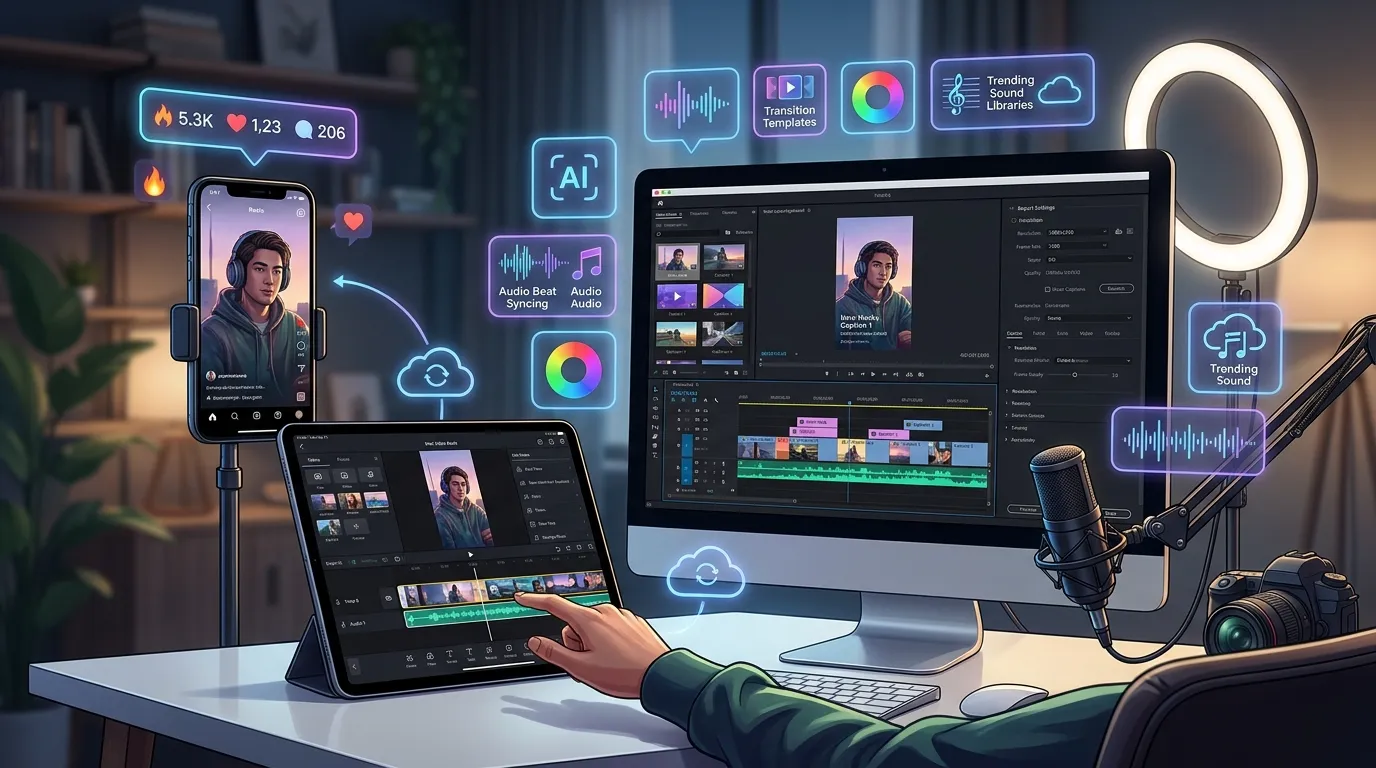
Audio sync tools enable a creator to synchronize the cuts and text per the beat of a arrange sound. Built-in audio waveform displays in apps will make this alignment quicker and more precise than by “eyeballing.”
Export Quality and Resolution Options
It comes down to export settings whether a Reel will be uploaded at 1080p or higher with no loss in compression. Apps with 4K export provide creators with a bit of a margin of error before Instagram chops down the final 4K image.
Platform Compatibility (Mobile, Desktop, Cross-Device)
The reason for platform compatibility is that certain creators edit on their cell phone while other creators edit on their laptop or they hop from one platform to the other when working on a project. Cloud apps with a mobile/desktop edition are the ones that will enable this type of cross-device workflow.
Pricing and Accessibility (Free vs. Paid)
Much like the majority of Reels editing software, most of them have a free tier of watermarked or limited exports, and a paid tier that does not have such limitations. Aligning the pricing model of the app with your actual usage and needs ensures you aren’t wasting money on features you don’t use.
Top Instagram Reels Editing Apps for Mobile Creators
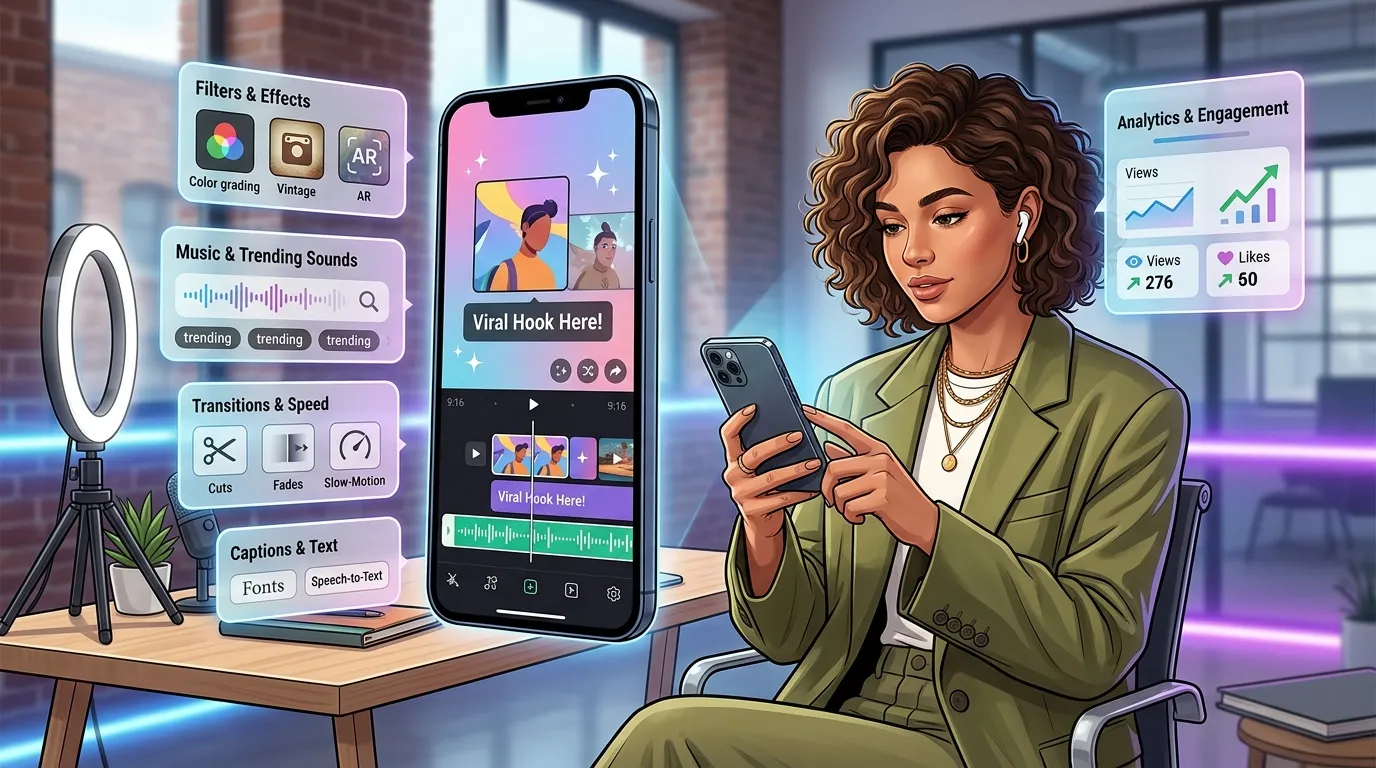
There are 11 best mobile Instagram Reel Apps up to now to choose from, from the Instagram’s built-in application to superior multi-track editing platforms.
Instagram’s In-App Editor
Instagram Reels In-App Editor is the pre-built editor within the Instagram app that allows you to edit, add music, and attach some basic effects without leaving the platform.
Best for Fast and Simple Editing on the Go
InApp is the editor that’s the best if you are doing something quick in your post right before you publish it, and it does not need to export and upload to an external app.
Pros, Cons, and Pricing
Instagram’s trendy audio library and effects can be used in the in-app editor, as well, and is free to use. It does not have some of the more sophisticated capabilities of dedicated applications, such as multiple track timelines, keyframe animation and accurate colour-grading capabilities.
InShot
InShot is a mobile video and photo editor that features vertical video-specific music, trimming and filters.
Best for Basic Cuts and Mobile Editing Features Instagram Misses
InShot is ideal for creators who are looking for capabilities in trimming, speed and timings and text manipulation, which Instagram’s built-in editor doesn’t provide, while preserving workflow simplicity.
Pros, Cons, and Pricing
InShot has both a free version (with a small watermark) and a subscription version that eliminates the watermark and adds additional filters and transitions. Simple though not as extensive as CapCut for advanced users is effects library.
CapCut
For short-form video, CapCut is a mobile and desktop video editor that is well-known for its special effects, templates, and comprehensive collection of transitions.
Best for Special Effects and Manual Editing
CapCut is ideal for content creators seeking meticulous manual control and those ramped-up effects and templates that follow water-level rises, directly sourced from the trending Reels and TikTok formats.
Pros, Cons, and Pricing
CapCut has both free (without any watermark) and Pro (with auto captions and a vast effects library) versions available to its users. The many features can be overwhelming to those new to editing.
Splice
Splice is a mobile video editor featuring a streamlined timeline based editing surface, with easy trimming, music syncing, and basic color correction.
Best for User Interface and Ease of Use
Splice is an ideal choice for creators looking for a simple to use, easy-to-understand timeliner with no learning curve.
Pros, Cons, and Pricing
Splice has a free version with basic trimming and music features, and a subscription service that provides more advanced features, such as additional filters and export options. It does not have as many advanced effects and features as CapCut or KineMaster.
KineMaster
KineMaster is a video editing tool featuring a multi-layer timeline that provides a layer for each of the standard video types: video, audio, text and image.
Best for Advanced Multi-Track Editing
KineMaster is ideal for creators who are creating layered Reels with multiple video clips, audio tracks, and text elements requiring individual timing adjustments.
Pros, Cons, and Pricing
KineMaster has a free, watermarked version, and a paid subscription to remove the watermark and unlock extra content. The multi-track interface is a little harder to learn than simpler trim based applications.
FilmoraGo
FilmoraGo is the mobile version of Wondershare’s Filmora desktop editing tool and includes AI-powered cutting tools and templates.
Best for AI Features and Ease of Use
For creators who need AI assistance to automate tasks such as scene detection and auto-captioning, FilmoraGo is the ideal option.
Pros, Cons, and Pricing
FilmoraGo is available both in a free and a paid version: while the free version is watermarked, the paid version allows for using full-resolution exports and premium effects. If you need to manually correct features on AI sometimes you need to have top quality accuracy on timing.
Adobe Premiere Rush
Adobe Premiere Rush is a cross-device video editor, that integrates with Adobe’s wider Creative Cloud.
Best for Working Across Devices
With projects automatically being synced between devices, creators will see the best results using Premiere Rush when they begin a Reel video editing session on the mobile app and complete it on a desktop.
Pros, Cons, and Pricing
Premiere Rush is available as a limited free version and a full export and storage is unlocked via the Creative Cloud subscription. The interface has a higher learning curve than the mobile-only applications.
VN Video Editor
This mobile and desktop app VN Video Editor is free of watermarks, and presents an automated and high quality timeline.
Best for Clean, Ad-Free Editing
VN Video Editor is best for creators who prefer not to see any chaotically displayed ads while editing.
Pros, Cons, and Pricing
The entire range of functions, such as keyframe animation and curve speed control, is free in VN Video Editor. The app’s sounds library may not be as extensive as the one for trending sounds provided by CapCut.
Mojo
Mojo is a mobile app that focuses on making animated text templates and making designs similar to Story format for Instagram Reels.
Best for Animated Text and Story Templates
Mojo is ideal for creators looking to add impact and flair, such as animated, bold typography instead of editing and adding effects to video.
Pros, Cons, and Pricing
Mojo gives you a free tier that comes with limited templates, as well as a subscription to gain access to the complete animated template library. Instead of in-depth video editing capabilities, the app concentrates a bit more on text design.
Quik (GoPro)
Quik is GoPro’s mobile application that allows users to put together clips to create a final video on a smartphone that is automatically synced with music.
Best for Quick Auto-Edits
Q Implementation of Quik would be ideal for the creator who wants an app to compile several clips automatically according to a chosen music file and desired clip sequencing.
Pros, Cons, and Pricing
Quik does not have any forced watermark, is free and is great for action or travel videos. Manual track-by-track control of individual cuts and transitions remains limited, as opposed to linear-editing programs.
PicsArt
PicsArt is an all-in-one social media photo editor that also includes a video editing feature.
Best for Combining Photo Editing with Video
PicsArt is ideal for those who can’t go without photo retouching tools and video editing, all within the same application, rather than keeping everything on a number of platforms.
Pros, Cons, and Pricing
The free-level of PicsArt has watermark exports, while subscribing opens higher-resolution export with no watermark in addition to premium stickers and backgrounds. Video editing software is still not as sophisticated as standalone video applications.
Top Instagram Reels Editing Apps for Desktop and Advanced Users
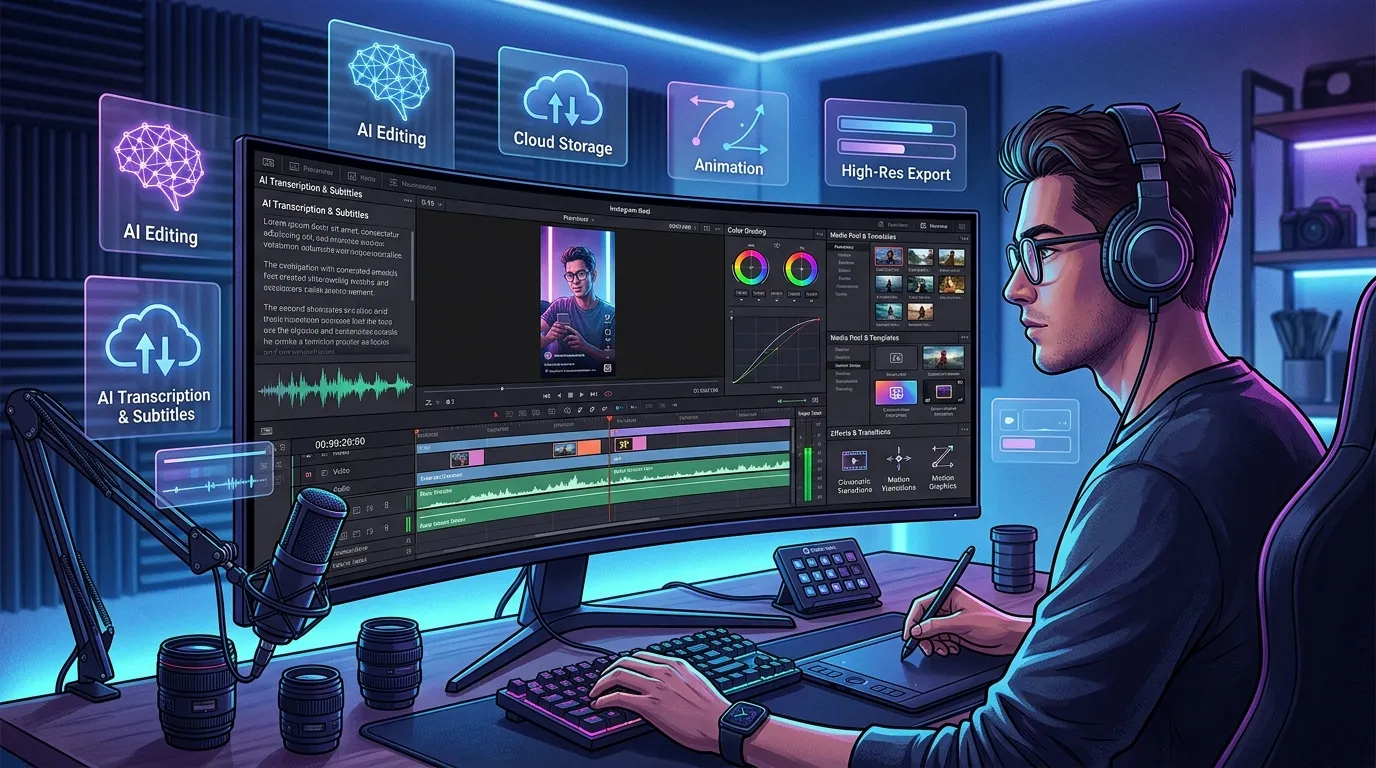
For those seeking more to advanced color grading, branding, or AI-powered editing, there are 6 top desktop apps for editing Instagram Reels.
VEED.io
VEED’s Online Video Editor is accessible directly to a web browser, and it provides editing, captioning and branding tools with no download.
All-in-One Online Editor for Desktop/Laptop
The disadvantage of VEED is that it’s built for creators working entirely in the browser as VEED stores projects in the cloud rather than locally.
Pros, Cons, and Pricing
VEED.io has a free version, but you can get the same with export limits, and for the paid version, there are no export limits or brand kit storage. If the project is large, browser-based editing may be slower than editing directly on the desktop.
Canva
Canva is a design tool that provides a combination of graphic templates, video editing, and brand kit capabilities – all powered by Canva AI capabilities such as Magic Studio.
Best for Graphics, Branding, and Templates
Canva suits creators who have a predefined style and fonts, based upon a shared design system, so that they can create branded Reels.
Pros, Cons, and Pricing
Canva has a free basic version, and the Pro version which extends to brand kit and premium resources. The video editing power remains light compared to stand-alone video editors such as DaVinci Resolve.
Clipchamp
Microsoft’s web-based video editor, Clipchamp provides Reel-ready templates and built-in AI video editing features.
Best for Editable Reel Templates and AI Tools
As a result, Clipchamp is ideal for content creators seeking pre-made Reel templates that can be easily customized using AI Editing and AI Generation features.
Pros, Cons, and Pricing
The free version of Clipchamp has export limits, and the paid version gives access to premium templates and stock media. The app is deep into Windows, but does not have the same advanced manual controls as DaVinci Resolve.
Descript
Descript is a desktop video editor, which uses AI to transcribe video into text, allowing creators to edit by editing text.
Best for AI-Powered Editing and Transcription
Have the AI Generation tools transcribe spoken audio and simultaneously remove filler words and pauses, then Descript is the perfect tool for creators.
Pros, Cons, and Pricing
Descript provides a limited free edition along with its subscription program. Background noise / strong accents may reduce transcription accuracy.
DaVinci Resolve
Known for color grading tools that are found across film and television production, DaVinci Resolve is a professional quality desktop colour editing software.
Best for Professional-Grade Color Grading and Editing
DaVinci Resolve is for creators looking for more sophisticated color correction and multi-track audio editing than would be available with a mobile app.
Pros, Cons, and Pricing
While DaVinci Resolve is a full-featured free video editor, it also has a paid Studio upgrade that unlocks more effects for a one-time fee. It offers the steepest learning curve of any mobile-first Reels app on the list.
Final Cut Pro
Another professional video editor, developed specifically for Mac, is Final Cut Pro, a software with a magnetic timeline and enhanced rendering engine.
Best for Mac Users Seeking Advanced Features
Final Cut Pro is ideal for Mac users doing the creative work who require quick turnout of renders and a streamlined and high-end editing experience.
Pros, Cons, and Pricing
Final Cut Pro is treated like a one-time purchase instead of a subscription and is a solid-running program for Apple. Unfortunately, the app is for macOS only and does not support Windows or Android tablet and mobile content creators.
AI-Powered and Template-Based Editors
5 AI editors and templates are available to help automate the creation of Reels.
The AI Short-Form Repurposing Engine
How modern AI engines instantly extract short Reels out of primary source tracks.
OpusClip
OpusClip is an AI-driven tool that automatically generates short clips from longer video content, tailored for use on platforms like Instagram and TikTok.
Best for AI-Powered Repurposing of Long-Form Content
The best use of OpusClip is by creators who want to make several short Reels from podcasts, YouTube videos, or webinars without having to clip them manually.
Pros, Cons, and Pricing
There are two pricing structures: a free one with export limits per month, and a paid one with reduced AI Editing capabilities and export limits. Sometimes automated clip selection requires manual checks for accuracy.
ZapCap
ZapCap is a short-form video automated AI captioner with style customisation and animation.
Best for Automatic Captions and Subtitles
ZapCap is ideal for creators looking for quick, accurate auto-captions that do not require time-line syncing of captions by audio.
Pros, Cons, and Pricing
There are two subscription options: export limits and unlimited export with custom caption styles (a paid subscription is required). Like other transcription-based products, caption reliability will rely on sound quality.
Vizard.ai
Vizard.ai is a AI video editor that can find the best moments in a long video and shorten it into a small video.
Best for AI Video Editing and Repurposing
Vizard.ai is ideal for content creators who require AI Video APIs to analyze footage and automatically identify the most engaging portions for inclusion in their projects.
Pros, Cons, and Pricing
Vizard.ai offers a free plan with restrictions on clip generation as well as a paid plan that opens up to a higher number of clips exported. Video type is dependent on the Detection Accuracy.
Pictory
Pictory is an AI video generator that creates videos from scripts or articles through Text to Video generation.
Best for AI-Generated Video Highlights
Pictory is ideal for content creators who want to convert written work into video content but aren’t interested in shooting original content.
Pros, Cons, and Pricing
Pictory also provides a complimentary minimal test, which might be upgraded to a higher subscription program with more extensive export length along with stock footage access. The clarity and structure of the source script plays a very important role on the output quality.
Templify
Templify is a template-based editor with viral Reel formats and trend-based outfitting.
Best for Templates and Viral Trends
Templify is ideal for creators who do not wish to create a reel from scratch but rather want to incorporate footage in a trend-based template.
Pros, Cons, and Pricing
Templify has a free plan and paid plan: the free plan has a limited template library while the paid plan unlocks the full trend-tracking catalog. If a lot of people are using the same template, it might sacrifice originality in design.
Step-by-Step Process for Editing Instagram Reels Like a Pro
The video editing process for pro Reels consists of 6 steps: planning, importing, captioning, enhancing, exporting, and analyzing.
The Professional Editing Sequence
Always complete audio syncing and structural timeline cuts before layering transitions and styling effects.
1. Pre-Production Asset Staging
Map your creative narrative structure and collect all high-res video clips and sound assets first.
2. Timeline Compilation & Trimming
Drop rough assets onto multi-track surfaces and prioritize clean narrative flow before touching decorations.
3. Caption & Text Subtitle Automation
Apply speech-to-text engines to bake high-contrast dynamic text elements onto screens for muted viewers.
4. Audio Syncing & Transitions
Lock pacing adjustments exactly to trending sound audio waves and insert smooth jump cuts on clean actions.
5. Quality Optimization & Export Run
Render edits natively at minimum 1080p outputs to ensure platform compression algorithm headroom blocks.
6. Analytics Metric Iteration
Review post retention and watch-time data curves on Instagram Insights to modify pacing habits.
Step 1: Plan Your Content and Gather Assets
State the structure of the Reel and collect all the footage, music and graphic before launching the editing application. In the film’s planning phase there is less back and forth to edit than would otherwise be the case if the footage were already on the system.
Step 2: Import and Arrange Your Clips
Import all clips t the timeline and sequence them as the logical order before cutting individual clips. When you arrange the clips first, it will be easier to get the pacing right before working on individual clips.
Step 3: Add Captions and Text Overlays
Post text overlays and captions to Reels as an after-thought, as the majority of people watch Reels without audio. Instead of manually typing, auto-caption can be used for films, such as those that you can make and edit in your CapCut or ZapCap App.
Step 4: Enhance with Music, Effects, and Transitions
Add music, transitions and effects after the main footage and captions have been completed. If they are added as a last step, one won’t need to redo timing work in case one might move the order of the clips during editing.
Step 5: Review, Optimize, and Export
Watch the entire Reel in real time before exporting in the best quality that can be achieved within the app. At the very least, sending at 1080p means it has a quality buffer if Instagram compresses the final upload.
Step 6: Analyze Performance and Iterate
Published Reels can be reviewed after posting to Instagram Analytics to provide watch time and completion rates for the Reel. Analyzing these metrics helps to determine which aspects of Reels to replicate or change, like pacing or caption styling.
Tips to Edit Instagram Reels Like a Pro
There are 8 editing habits to take your Reels from mediocre to perfect.
Use Trending Sounds Strategically for Higher Reach
Pick the most popular sounds within the first 48 hours of the trend, as Instagram’s algorithm likes it when people post content early to a trending sound, giving them an increased reach.
Avoid Over-Editing
Consider using too many effects and Reel visual changes as they take away from the primary content and may diminish watching time.
Maintain Brand Consistency in Text and Filters
Ensure all photos and videos in each Reel are done using the same font, colour palette and filter package to create a strong visual identity. Storing these presets in a template within an editing application makes over time this consistency happen in a quicker time.
Use Captions: Most Viewers Watch Reels Muted
Provide captions to all Reels, as the majority of users choose not to have sound and therefore won’t be able to hear any spoken information without text.
Save Templates to Speed Up Future Edits
Copy and paste a completed Reel’s layout for future use of the template to reduce the editing time in the future by using the same layout and adding in new footage and clips.
Cut on Action for Smooth Transitions
The time stops at a movement (e.g. hand movement or turn) in the middle of the sequence rather than cutting at a freeze-frame. There are several different ways to transition and this method prevents abrupt transitions.
Summary
| Target Creator Tier | Primary OS Platforms | Recommended Toolkit | Key Edge Advantage |
|---|---|---|---|
| Beginner Mobile | iOS, Android | InShot / In-App Edits | Zero learning curve; rapid edit turnarounds. |
| Intermediate Social | iOS, Android, Web | CapCut / VN Editor / Canva | Trending transition assets & keyframe controls. |
| AI-Driven Scale | Web Browser Engine | OpusClip / Vizard.ai / Descript | Automated long-form to short clip splicing. |
| Professional Cinematic | Windows, macOS | DaVinci Resolve / Final Cut Pro | Advanced HSL color-grading matrices & track node layers. |
Top free Instagram Reel editing apps include such easy-to-use, trim-focused programs as InShot and VN Video Editor as well as multi-track editing software for beginners such as DaVinci Resolve or Final Cut Pro.
Quickly matching an app with the correct level of skill, maturity, kind of content and budget trans-forms the raw footage into polished, scroll stopping Reels without the added complexity.